Managing users
The Users page (👥 in the sidebar) is where you manage who has access to your company.
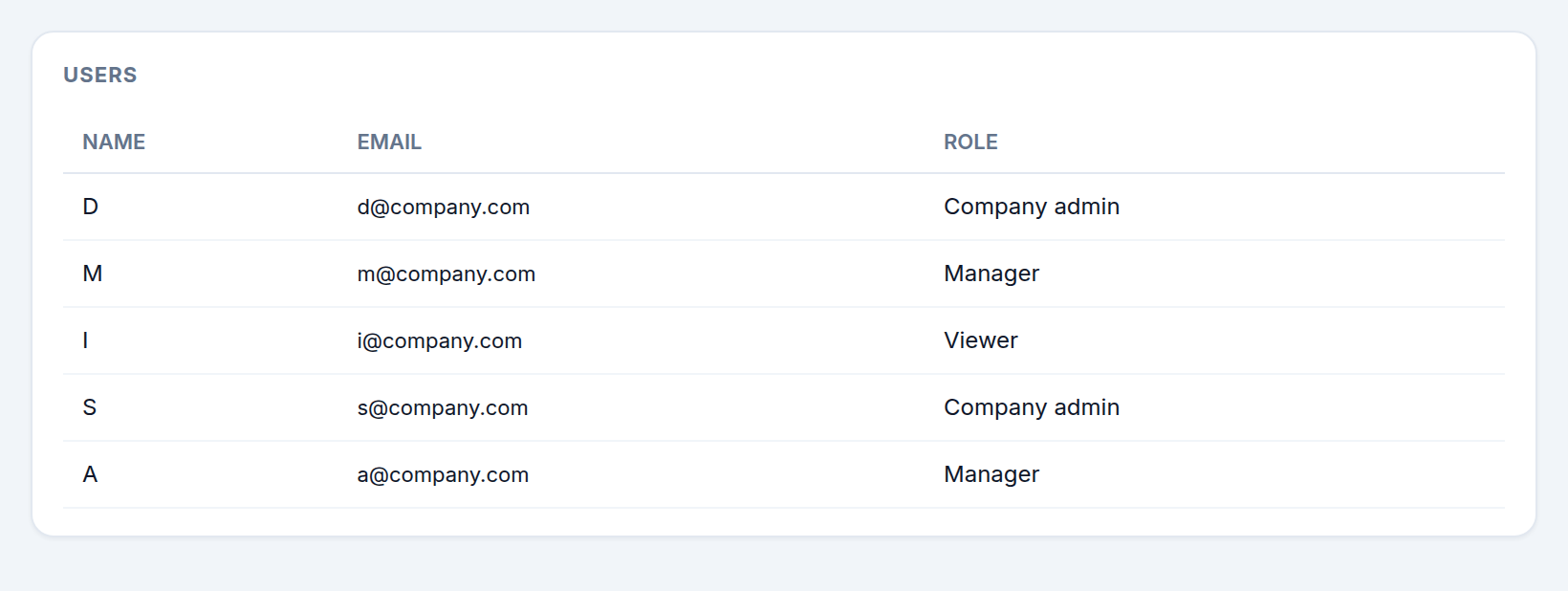
Creating a user
Click New user and fill in:
- Name — the person's display name.
- Email — used for login; must be unique.
- Password — the initial password (minimum 8 characters). They can change it later.
- Role — what they can do (see Roles & permissions).
Editing a user
Open a user to:
- Change their name or email.
- Reset their password (leave blank to keep the current one).
- Change their role.
- Delete them permanently (this also removes their call history).
Activating & deactivating
- The Active toggle in the list turns a user's access on or off instantly.
- A deactivated user cannot log in, but their history is preserved.
- Use bulk actions to activate or deactivate many users at once.
Best practices
- Deactivate (don't delete) people who leave — their call history stays for reporting.
- Use a naming convention for roles so it's obvious who's a manager vs. admin at a glance.
tip
Only Company Admin can manage users — managers and heads of ROP won't see this page.